

If you’re new to tax filing in the Philippines, hearing about eBIRForms can feel intimidating. Don’t worry, you’re not alone.
Many first-time freelancers, small business owners, and even employees get overwhelmed the first time they encounter tax forms. The good news is that eBIRForms actually makes filing easier once you understand how it works. Think of it as the BIR’s digital version of paper tax forms, but with built-in computation, auto-fill features, and a system that tells you exactly what needs fixing.
What Is eBIRForms?
eBIRForms is a free filing software created by the Bureau of Internal Revenue (BIR). It allows taxpayers to:
- fill out tax returns electronically
- compute taxes automatically
- validate errors
- submit certain forms online
Instead of manually calculating numbers or worrying about formatting, the system does most of the heavy lifting.
You can use it whether you’re self-employed, mixed-income, running a small business, or required by your RDO to file electronically. If you’re not enrolled in eFPS (the system for large companies and major taxpayers), then eBIRForms is your main tool for digital filing.
What You Need Before Starting
Before opening the software, it’s helpful to prepare a few things so you won’t end up pausing repeatedly while filling in the form. These include your:
- TIN and RDO number
- Business or personal registration details
- Income records and receipts
- Expense summaries (if applicable)
- 2307 or 2316 forms if you were withheld tax
- Email address you’ll use for receiving BIR confirmation
Having these handy speeds up the process and makes everything less stressful.
Installing eBIRForms
To start, download the latest eBIRForms package from the BIR website or use the download button below.
After downloading, install by running the file and following the prompts.
Once installed, you’ll see a dashboard with different tabs and a list of forms you can open. It looks old-school, but don’t let the interface fool you; it gets the job done.
When you launch it for the first time, the system will ask for your basic profile details. This is important because eBIRForms uses this information to automatically fill in your future returns.
You can find all these details in your Certificate of Registration, so keeping it close is handy. Once you save your profile, you rarely need to change it unless your registration information changes.

Under the personal info section, there is a dropdown where users choose the form they need to fill out depending on their tax type and transaction. For business owners, your tax form is usually written in your Certificate of Registration.
Choosing the Right Form
This is usually the step that confuses people the most, but once you understand the purpose of each form, it becomes much clearer. In the dropdown list, you’ll find forms like
- 1701 / 1701A – For annual income tax
- 1701Q – For quarterly income tax
- 2551Q – For percentage tax
- 1601C, 0619E, 0619F – For withholding tax filings
If you’re a freelancer or self-employed professional, for example, you’ll mainly use 1701Q (quarterly) and 1701 or 1701A (annual). VAT-registered taxpayers have their own set of forms as well.
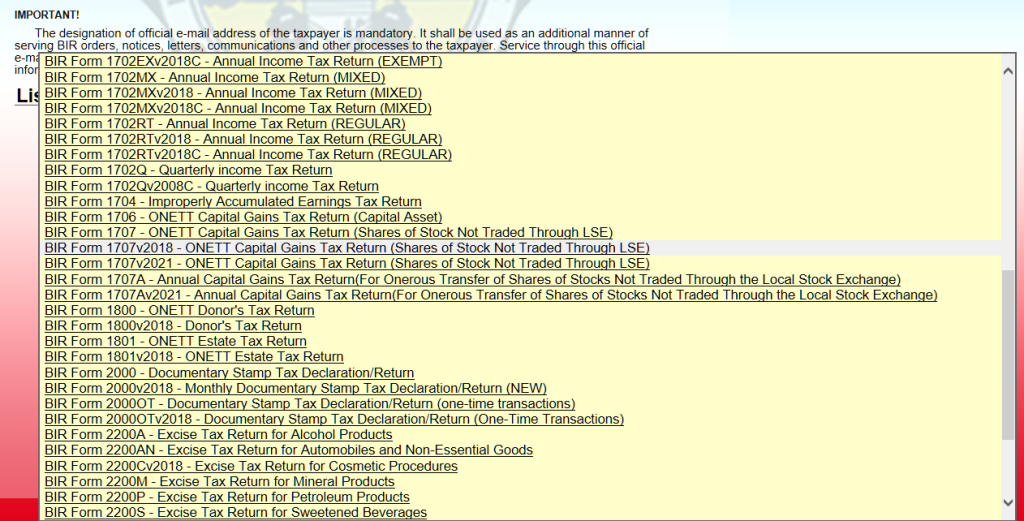
The key is simply knowing which tax types you’re registered for. These are listed in your BIR Certificate of Registration (Form 2303).
Filling Out the Form
This part is where eBIRForms becomes helpful. Once you open your chosen form, many fields will already be filled with information you saved in your profile. You only need to enter actual numbers: your income, expenses, withheld taxes, and other relevant amounts.
The software automatically computes totals and taxes, so you won’t have to calculate manually. And if you miss something important, a field will turn red or the system will alert you. It’s the app’s way of telling you: “Oops, check this part before you continue.”
If you have a 2307 (withholding tax certificate), you can encode the details in the attachments section of the form. This ensures your withheld tax is credited properly.
Validating and Submitting
Once everything is filled in, you’ll click the Validate button. This step scans your entire form for errors—wrong entries, missing information, or numbers that don’t add up. If something needs correction, the system tells you what it is.

After validating, you can choose Submit / Final Copy. This sends the form to the BIR server. As long as your internet is stable and your email is correctly typed, you’ll receive a confirmation email with a BIR-stamped acknowledgment PDF. This serves as your official proof of filing.
Keep this email safe. Download the PDF, save it in a folder, or back it up in Google Drive.
Don’t Forget: Filing Is Different From Paying
Submitting a form doesn’t automatically mean your taxes are paid. In each form, there is a section that automatically calculates your tax due. For example, the image below shows the tax payable when using Form 1701Q:
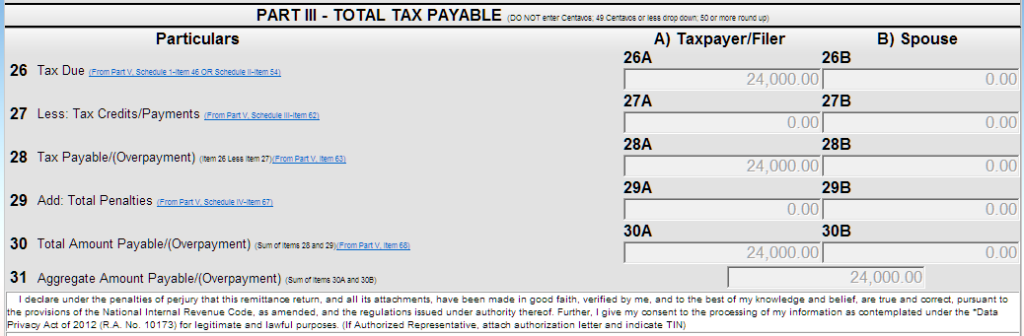
If there’s tax due, you’ll need to pay through any of these channels:
- GCash
- Maya
- Bank online payments
- Debit or credit card
- Authorized Agent Banks
- Accredited payment centers
Make sure to keep a screenshot or copy of your payment receipt for your records.
Common Issues and Quick Fixes
It’s normal to encounter hiccups, especially on deadline week when the system is congested. Errors like “Failed to Submit,” missing validation emails, or mismatched TIN and RDO information are usually fixed by:
- Updating your eBIRForms software
- Checking your internet connection
- Ensuring your email has no spaces
- Verifying your RDO number
- Resubmitting during non-peak hours
Most issues are minor and can be solved with simple adjustments.
Once you’ve gone through the process once or twice, eBIRForms becomes surprisingly manageable, even fast. The key is preparing your documents beforehand, understanding which forms apply to you, and filing ahead of deadlines to avoid server traffic.
Related Articles:
Leave a Reply